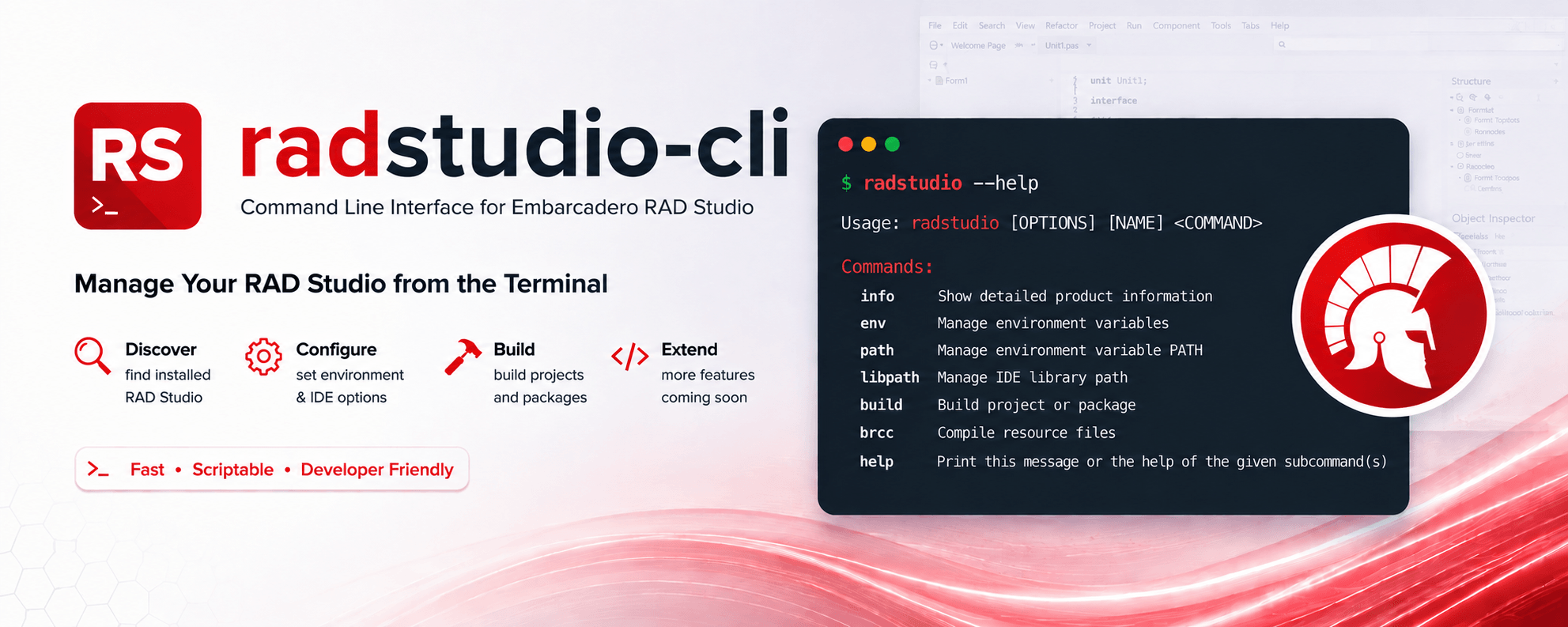
A command-line tool for discovering installed Embarcadero RAD Studio products (Delphi / C++Builder) and working with them — building projects with MSBuild or bds.exe, compiling resource files, managing IDE environment variables and search paths, and more — without having to open the IDE.
RAD Studio CLI reads the Windows Registry to find every installed RAD Studio / Delphi / C++Builder version on your machine (from classic Borland/CodeGear releases through the latest Embarcadero RAD Studio), and exposes that information through a simple CLI.
It can drive MSBuild to build .dproj/.cbproj project files as well as .groupproj project groups, using the correct toolchain environment (rsvars.bat / rsvars64.bat) for a chosen version, architecture, and platform.
It can also invoke the Delphi command-line compilers (DCC32.exe, DCC64.exe, DCCARM64EC.exe) directly, compile resource script files, and read or update the IDE's registry-backed environment variables and search paths.
RAD Studio CLI detects whether the targeted installation actually supports command-line compilation (Community and Trial editions typically don't), and both the build command and the direct dcc32/dcc64/dccarm64ec compiler commands automatically fall back to driving bds.exe instead when it doesn't — avoiding the "This version of the product does not support command line compiling" prompt without any extra flags.
When building a project group with bds.exe, each referenced project is patched and built the same way as if built individually, so options like config, platform, version-info stamping and preferred tool architecture are applied consistently across the whole group.
This makes it convenient to build Delphi/C++Builder projects and manage IDE configuration from scripts, CI pipelines, AI agents, or any terminal.
- 🔍 Discovery — automatically detects all installed RAD Studio/Delphi/C++Builder versions from the registry.
- 🧭 Version selection — target an installation by product name (
RAD Studio 13), codename (Florence,Rio,Berlin), or product version (13,12,XE2), or default to the latest installed version. - 🛠️ Build via MSBuild — build
.dproj/.cbprojfiles, or an entire.groupprojproject group, with a chosen configuration, architecture, and platform, optionally embedding version-info resources (company name, product version, copyright, etc.) and pinning a preferred 32-bit/64-bit command-line tool architecture. Automatically falls back tobds.exeon installations that don't support command-line compiling, unless--no-bdsis passed. - 🧱 Build via bds.exe — build the same project or project group files through
bds.exeinstead of MSBuild (same options asbuild), which avoids the "This version of the product does not support command-line compiling" prompt shown by Community/Trial editions. Used automatically as a fallback bybuildand bydcc32/dcc64/dccarm64ec, or invoke it directly with thebdscommand. - 🧮 Direct compiler invocation — compile Delphi files straight through
DCC32.exe/DCC64.exe/DCCARM64EC.exe(dcc32/dcc64/dccarm64eccommands), with options for conditional defines, unit/resource/include search directories, output directories, and passing through raw compiler switches; falls back tobds.exeautomatically on editions without command-line compiling support. - 📦 Resource compilation — compile
.rcresource script files to.resviabrcc32.exe. - ⚙️ IDE environment variables — view, set, or remove environment variables stored per-architecture for a RAD Studio installation.
- 🧩 Search path management — view, add, insert, or remove entries in the IDE's environment
PATH, Library path, and Browsing path, per architecture/platform. - ℹ️ Product info — print detailed information about installed products, including compiler/package versions, edition, personalities (Delphi/C++Builder), root directory, available architectures/platforms, command-line compilation support, and detected command-line compilers.
- 📌 Self-install — add (or remove) the CLI's directory to your user
PATHsoradstudiois available from any terminal.
- Windows (the tool relies on the Windows Registry and Windows-only APIs)
- A RAD Studio / Delphi / C++Builder installation registered under the current user
- Rust toolchain if building from source
You can download the latest release from the Releases page, or build it from source with Cargo:
git clone https://github.com/Delphier/radstudio.git
cd radstudio
cargo build --release
The resulting binary is target/release/radstudio.exe. Optionally, register it on your PATH so it can be run from anywhere:
radstudio self install
Run radstudio self uninstall to remove it from PATH again.
radstudio [NAME] [COMMAND] [OPTIONS]
| Argument | Description |
|---|---|
[NAME] |
RAD Studio name or version to target, e.g. 13, XE2, or Florence. Accepts a product name ("RAD Studio 13.1"), codename (Rio, Berlin), or version number. If omitted, the latest installed version is used. |
| Command | Description |
|---|---|
build (alias msbuild) |
Build a project file (*.dproj, *.cbproj, *.groupproj) via MSBuild; automatically falls back to bds.exe if the installation doesn't support command-line compiling (disable with --no-bds) |
bds |
Build a project file via bds.exe (same options as build); avoids the command-line compiling restriction on Community/Trial editions |
dcc32 |
Compile Delphi files for Win32 via DCC32.exe; falls back to bds.exe if command-line compiling is unsupported |
dcc64 |
Compile Delphi files for Win64 via DCC64.exe; falls back to bds.exe if command-line compiling is unsupported |
dccarm64ec |
Compile Delphi files for WinARM64EC via DCCARM64EC.exe; falls back to bds.exe if command-line compiling is unsupported |
brcc (alias brcc32) |
Compile a resource script file (.rc) into a .res file via brcc32.exe |
env |
View, set, or remove IDE environment variables |
env-path (alias path) |
View, add, insert, or remove entries in the IDE environment PATH |
library-path (aliases lib-path, libpath) |
View, add, insert, or remove entries in the IDE Library path |
browsing-path |
View, add, insert, or remove entries in the IDE Browsing path |
info |
Print installed RAD Studio product information |
self install / self uninstall |
Add or remove this tool from the user PATH |
Running env, envpath, librarypath, or browsingpath with no subcommand prints the current values. Each supports its own subcommands:
env—set/add <NAME> <VALUE>to set a variable,remove/rm/delete/del <NAME>to remove one.envpath,librarypath,browsingpath—add/push/append <ITEM>to append an entry (skipped if it already exists),insert <ITEM>to prepend an entry,remove/rm/delete/del <ITEM>to remove one.
dcc32, dcc64, and dccarm64ec take a source <FILE> plus compiler options: --no-config (skip the default dcc*.cfg), -D/--define <NAME> (repeatable), --unit-search-dirs/--resource-search-dirs/--include-search-dirs <DIRS>, -B/--build (rebuild all units), -Q/--quiet, --output-dir/--unit-output-dir/--package-bpl-output-dir/--package-dcp-output-dir <DIR>, C++Builder-related flags (--cpp, --cpp-win64x, --cpp-bpi-output-dir, --cpp-hpp-output-dir, --cpp-obj-output-dir), and a trailing -- <ARGS> to pass any additional raw compiler switches straight through to the compiler (e.g. radstudio dcc64 MyProject.dpr -- -W-SYMBOL_DEPRECATED).
| Option | Description |
|---|---|
-a, --architecture <ARCH> |
Toolchain/IDE architecture to use, e.g. IntelX86 (aliases x86, 32bit) or IntelX64 (aliases x64, 64bit); applies to all commands |
-p, --platform <PLATFORM> |
Target platform, e.g. Win32, Win64, Win64x, WinARM64EC, OSX64, OSXARM64, Linux64, Android32, Android64, IOSDevice64 |
--no-bds (alias --nobds) |
For build and dcc32/dcc64/dccarm64ec, disable the automatic fallback to bds.exe on installations that don't support command-line compiling |
--no-splash (aliases --nosplash, --no-logo, --nologo, --ns) |
Suppress the bds.exe splash screen (when building or falling back to bds.exe) or the MSBuild startup logo (/nologo) |
-h, --help |
Print help |
-V, --version |
Print version |
build and bds additionally accept -t, --preferred-tool-architecture <ARCH> (aliases --pta, --tool, --tools, --toolarch, --tool-arch) to pin whether the project's command-line compiler and tools run as 32-bit or 64-bit (DCC_PreferredToolArchitecture), independent of the -a/--architecture used to locate the toolchain itself.
Show all detected RAD Studio installations:
radstudio info
Show details for a specific version (by codename, product name, or number):
radstudio Florence info
radstudio 13 info
radstudio XE2 info
Build a project with the latest installed version:
radstudio build MyProject.dproj
Build a specific configuration/platform with a chosen RAD Studio version:
radstudio 13 build MyProject.dproj --config Release --platform Win64
Force the 64-bit command-line compiler/tools regardless of the toolchain architecture used to locate MSBuild.exe:
radstudio build MyProject.dproj --preferred-tool-architecture x64
Build and stamp the output with version-info resources:
radstudio build MyProject.dproj `
  --FileVersion "1.2.3" `
  --CompanyName "My Company" `
  --ProductName "My Product" `
  --LegalCopyright "Copyright © 2026 My Company"
Build with bds.exe instead of MSBuild (useful on Community/Trial editions that block command-line compiling via MSBuild):
radstudio bds MyProject.dproj --config Release --platform Win64
Build every project referenced by a project group, via bds.exe:
radstudio bds MyProjectGroup.groupproj --config Release --platform Win64
Build with build, but force a hard failure instead of silently falling back to bds.exe on editions that don't support command-line compiling:
radstudio build MyProject.dproj --no-bds
Suppress the bds.exe splash screen or the MSBuild startup logo while building:
radstudio build MyProject.dproj --no-splash
Compile a Delphi source file directly with DCC32.exe:
radstudio dcc32 MyProject.dpr
Compile for Win64 with a conditional define and a custom unit output directory:
radstudio dcc64 MyProject.dpr -d DEBUG --unit-output-dir .\dcu
Compile for WinARM64EC using a specific RAD Studio version, passing raw extra options through:
radstudio 13 dccarm64ec MyProject.dpr -- -W-SYMBOL_DEPRECATED
Compile on a Community/Trial edition (automatically falls back to bds.exe, no extra flags needed):
radstudio dcc64 MyPackage370.dpk
Compile a resource script into a .res file:
radstudio brcc MyProject.rc
Compile with an explicit output path, using a specific RAD Studio version:
radstudio 13 brcc MyProject.rc MyProject.res
Show IDE environment variables for the latest installed version:
radstudio env
Set an IDE environment variable:
radstudio env set MY_VAR "some value"
Remove an IDE environment variable:
radstudio env remove MY_VAR
Append a directory to the IDE's environment PATH:
radstudio envpath add "C:\Tools\bin"
Show the Library path for a specific platform:
radstudio 13 librarypath --platform Win64
Insert an entry at the front of the Browsing path:
radstudio browsingpath insert "C:\MyLib\Include"
This is a Cargo workspace with three crates:
crates/
├── radstudio/           # library crate — registry discovery, product info, tools integration
├── radstudio-cli/       # cli crate — the `radstudio` command-line binary
└── radstudio-macros/    # internal proc-macro crate — generates DCC command-line option tables
Issues and pull requests are welcome. Please open an issue to discuss significant changes before submitting a large PR.