
- Minimalistic theme: solid gray with visible shadow, that separates menu from other apps.

- Customizable menu options: Configure images, text, tooltips, item size, skins, and more.
- Change icons: let the menu inform you about any state (currently new one overlaps old one so its suitable only for changing colors). See
settings menu -> battery iconsorsafe mode.

- Multiple submenus: multiple items and multiple rings.
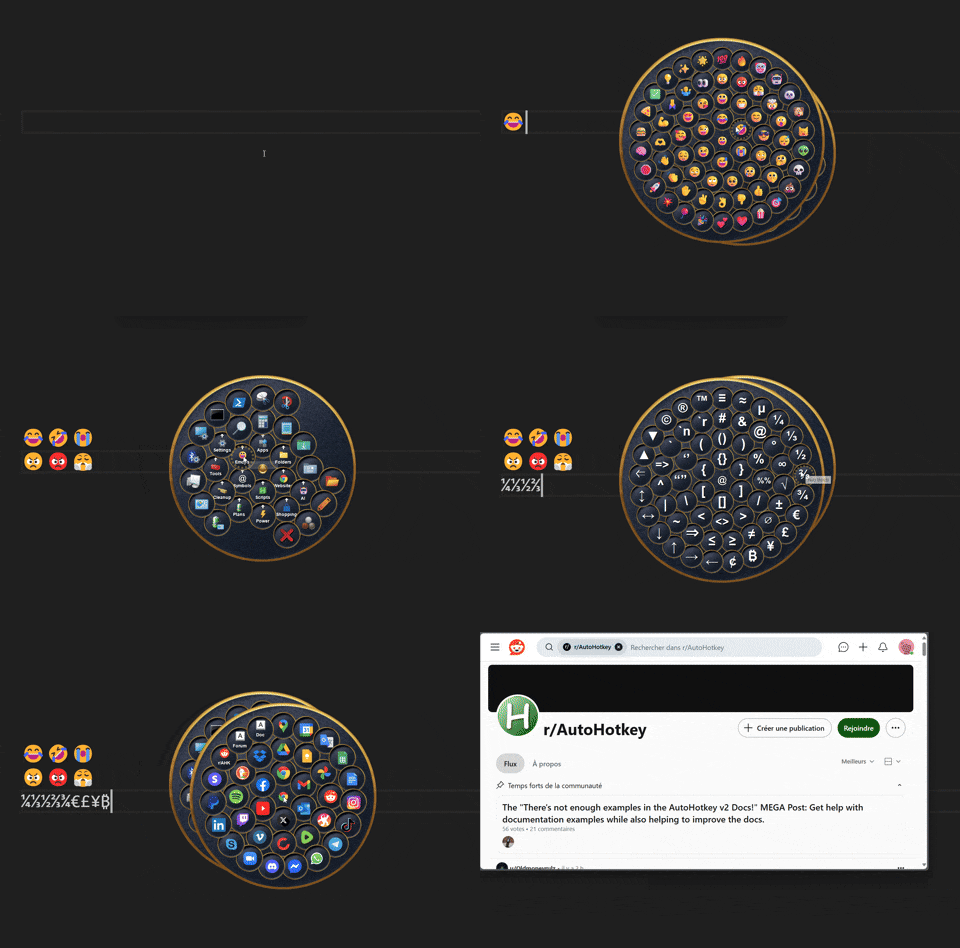
-
Multi-Level submenus: requires muscle memory only. No more visual searching. Inspired by Kando mouse gestures.
rightorleftclick can open different submenu, as well asctrl,shift,alt+ click

- tooltip can show which "type" of click is required to open certain submenu:

- deeply nested items can be found via
Ctrl+F:

-
Auto-close on losing focus: if you opened wrong menu, just press
Escor click anywhere to close the menu.

Download and install AutoHotkey v2.0.19+. Download or clone current repository

Open Radify Menus.ahk and click on each item to see what it does. Open Radify Skin Editor.ahk to change theme and various settings.
To add/edit items, you need to edit Examples.ahk and Radify Menus.ahk according to the documentation below.
To create a new menu you need array of objects:
Radify.CreateMenu('main', [[
  {
    text: 'Xyplorer',
    click: Dir('C:\Users\ToYu\XYplorer\Data\Scripts'),
    image: 'C:\Users\ToYu\Pictures\icons\PNG\xyplorer file.png'
  },
  {
    text: 'PowerShell',
    click: Dir('C:\Configs and settings\PowerShell'),
    image: 'C:\Users\ToYu\Pictures\icons\PNG\console3.png'
  },
  {
    text: 'AutoHotKey',
    click: Dir('C:\Configs and settings\AutoHotKey'),
    image: 'C:\Users\ToYu\Pictures\icons\Lumicons\Mono\autohotkey.ico'
  }
]])
Each object represents single menu item: the characteristics and behavior. An empty object {} inserts a blank space in the menu, useful for spacing or alignment. You can pass any object with the following properties:
Available actions
| Property | Type | Description |
|---|---|---|
Click |
function object | string | Action to execute when the item is clicked. |
RightClick |
function object | string | Action to execute when the item is right-clicked. |
CtrlClick |
function object | string | Action to execute when the item is ctrl+clicked. If the CtrlClick action is not defined, Ctrl + Click executes the item’s Click action (if defined), without closing the menu. |
ShiftClick |
function object | string | Action to execute when the item is shift-clicked. |
AltClick |
function object | string | Action to execute when the item is alt-clicked. |
HotkeyClick |
string | Hotkey that triggers the Click action. |
HotkeyRightClick |
string | Hotkey that triggers the RightClick action. |
HotkeyCtrlClick |
string | Hotkey that triggers the CtrlClick action. |
HotkeyShiftClick |
string | Hotkey that triggers the ShiftClick action. |
HotkeyAltClick |
string | Hotkey that triggers the AltClick action. |
HotstringClick |
string | Hotstring that triggers the Click action. |
HotstringRightClick |
string | Hotstring that triggers the RightClick action. |
HotstringCtrlClick |
string | Hotstring that triggers the CtrlClick action. |
HotstringShiftClick |
string | Hotstring that triggers the ShiftClick action. |
HotstringAltClick |
string | Hotstring that triggers the AltClick action. |
Properties like Click, RightClick, ... accepts function object or callable objects which will be executed on item click.
Some of them are pre-defined for you:
-
Dir(path)- will open any directory. -
Fil(path)- will open any file. -
App(path)- will open any file/application and activate it's window. If app is opened - just activates it's window. -
Image(path, menuId, itemText, imagePath)- will change image of item by it'stextprop. insidemenuIdtoimagePathand then will launch applicationpathjust likeAppabove. -
Cmd- will execute a command in the background (usescmd.exe). -
Clip(toSend, isClipReverted := true, untilRevert := 300)- will send passed data to the active window. -
Extract(archivePath, workingDir?, exePath?)- will extract the archive toworkingDir. IfexePathis provided - will launch that app. IfexePathis relative, launches extracted app inworkinDir.
  {
    text: 'PowerShell',
    click: App('pwsh'),
    rightClick: App('cmd')
  },
  {
    text: 'AutoHotKey',
    click: Dir('C:\Configs and settings\AutoHotKey'),
    shiftClick: Dir(A_ScriptDir)
  },
  {
    text: 'Destroy',
    click: CloseMenu  ; no arguments!
  }
How to create a callback
click, rightClick, ... expects a callback - something that can be called later. The easiest way to create a Radify-compatible callback is to implement the ICallback interface:
class Temp extends ICallback {
    Call() => Run(A_Temp)
}
A callback must have a Call() method. The ToString() method is optional, and used by tooltip auto-gen. to convert an action such as click into a string for the tooltip:
class Dir extends ICallback {
    __New(path) {
        this.path := path
        this.file := GetName(path)
    }
    Call() => Run(this.path)
    ToString() => this.file
}
The __New constructor is only needed so that the callback can store information required for the Call() method to function.
Various callbacks are already provided in the library, and their ToString() methods return a human-readable value for tooltip auto-gen.
You can also pass special string:
"Close": Closes the entire menu tree."CloseMenu": Closes only the current menu."Drag": Moves visible menu.
  {
    text: 'Close',
    click: "Close",
    rightClick: "CloseMenu"
}To create a submenu, pass it into any click, rightClick, ... action:
Radify.CreateMenu('mainMenu', [[
    {
        click: Submenu("Applications", appsMenu),
        rightClick: Submenu("Websites", websitesMenu, websitesMenuOptions),
        shiftClick: Submenu("Scripts", scriptsMenu),
        altClick: Submenu("Symbols", symbolMenu, symbolMenuOptions),
        ctrlClick: Submenu("Emoji", emojisMenu, emojisMenuOptions),
        text: 'Apps'   ; This is main item text
    }
]])
This example creates single item, that open "Applications" menu on left click, "Websites" on right click, "Scripts" on alt+click, "Emoji" on ctrl+click. One item - multiple actions.
You can create a submenu without a name. Also you can pass rings directly:
Submenu(, [[
    {image: 'autohotkey.ico', text: 'QuickSwitch'},
    {image: 'autohotkey beta.ico', text: 'Radify'},
    {image: 'aquahotkey.png', text: 'AquaHotkey'}
])
You can pass Sub, it's an alias for Submenu:
click: Sub(, appsMenu),Each submenu can have its own set of options and unique name. The name you provided can be used anywhere:
Radify.CreateMenu('mainMenu', [[
    {
        text: "destroyer2000",
        shiftClick: Submenu("apps", [[
            {
                click: App('notepad.exe')
            }
        ]]),
        click: () => Radify.CloseRoot("apps"),  ; close entire chain from "apps" to its root
        rightClick: () => Radify.CloseMenu("apps"),  ; close "apps" only
        pathFindHotkey: '^f',	 ; press Ctrl+F to open search window
        rootPathFind: 'apps',    ; starting searching from "apps"
    }
]])
In addition, you can pass options to various actions such as shiftClick that determine how the menu behaves after an item is clicked:
{
    closeOnItemClick: false,
    closeOnItemRightClick: false,
    stayOpenOn: 'Alt'
}
By default, the menu closes automatically after you click on any item. stayOpenOn key (alt by default) can be used to choose any key to hold down so that the menu remains open. This is useful for selecting multiple items at once and closing the menu when you release the key. It can be any key, as long as it is compatible with GetKeyState().
- File path to a standard image. (
png, jpeg, jpg, ico, gif, bmp, tif) - Image filename from the
/Imagesfolder (include the file extension, e.g.,downloads.png). - Image handle (
hIcon,hBitmap). - Icons from resource libraries (
.exe,.dll,.cpl). Use the format:fullPath|iconN, whereNis the icon index. If|iconNis omitted, icon index 1 is used by default.- Examples:
A_WinDir '\System32\imageres.dll|icon19'A_ProgramFiles '\Everything\Everything.exe'
- Examples:
To change item image dynamically, call Radify.SetItemImage(menuId, itemText, image) inside your callback:
MyApp(name, newImage) {
   return (*) => (
        Run(name),
        Radify.SetItemImage('main', 'PowerShell', newImage)
    )
}
; . . .
  {
    text: 'PowerShell',        ; replace path to icons with your path!
    click: MyApp('pwsh',     'C:\Users\ToYu\Pictures\icons\Lumicons\Terminal Powershell.ico'),
    rightClick: MyApp('cmd', 'C:\Users\ToYu\Pictures\icons\Lumicons\Terminal cmd.ico')
  }
You can pass this method as bound func to the item:
  {
    text: 'PowerShell',
    click: Radify.SetItemImage.Bind('main', 'PowerShell', 'C:\Users\ToYu\Pictures\icons\Lumicons\Terminal Powershell.ico')
}If you've forgotten what happens when you click, right-click, or shift-click, enable the autoTooltip flag in the [Skin Editor](Radify Skin Editor.ahk) or in provide it in menu options.

It can automatically generate both complex and simple tooltips describing the structure of menus and submenus:
Radify.CreateMenu('mainMenu', [[
    {	; item
        click: Dir('Scripts\EmptyRecycleBin.ahk'),
        rightClick: Dir(A_WinDir),
        text: 'Sys',
        tooltip: 'my Sys item'
    },
    {   ; menu options
        enableTooltip: true,
        autoTooltip: true,
        autoTooltipStructure: false,
        autoTooltipMenuItemTextFirst: true,  ; append `text` property (if present)
        autoTooltipItemActionFirstOnly: false,  ; first found action of each menu or item (e.g. "click")
        autoTooltipMaxMenuItems: 2,  ; Max. amount from each menu and submenu
     }
]])
The following menu and submenu options allow you to customize the final appearance of the tooltip:
-
autoTooltip: Generates the tooltip text iftooltipproperty is not present. Appends item text or image name:my Sys item -
autoTooltipStructure: Generates the tooltip from root Menu and Submenus structure: their text, items text, items actions actions (click,rightClick, ...):
click: ./EmptyRecycleBin.ahk
rightClick: ./System32
autoTooltipMenuItemTextFirst: Appendtextproperty from each items. Iftextis missing, generate from actions and submenus.
Sys  <-- text comes first
click: ./EmptyRecycleBin.ahk
rightClick: ./System32
-
autoTooltipItemActionFirstOnly: Generate tooltip only from the first found action (click,rightClick, ...) of each menu or item:click: ./EmptyRecycleBin.ahk -
autoTooltipMaxMenuItems: If an action contains a submenu with many items, you can limit their number:
mainMenu
  click: menu "apps" <-- item1
  	 click: ./notepad.exe
    click: ./notepad++.exe
  click: menu "notes" <-- item2
  	 click: ./typora.exe
    click: ./obsidian.exe
In addition to automatically generating tooltips, Radify can help you find the element you're looking for by automatically navigating the entire path to it.

Since each submenu is now linked to its parent (and child, if any), Radify can precisely locate an item in any chain:
main menu -> submenu apps -> submenu notes -> ...
                      ^--- start here
In the Skin Editor or using the rootPathFind menu option, you can select the name of the menu from which to start the search. If an item is found in the submenus starting from this chain whose text matches the text entered in the search window, the mouse cursor will automatically trace the entire path from the root to the item and show you how to find it.
rootPathFind accepts a menu name (menuId) or a special placeholder:
<open>: start the search from the currently open (visible) menu<last>: start the search from the last (recent) menu<root>: start the search from the root of the currently open menu
Menu options are responsible for configuring the Path Finding in the current menu and its child submenus:
Radify.CreateMenu('mainMenu', [[
    {image: 'autohotkey.ico', text: 'QuickSwitch'},
    {image: 'autohotkey beta.ico', text: 'Radify'},
    {image: 'aquahotkey.png', text: 'AquaHotkey'}
]],
{
	rootPathFind: '<open>',
    casePathFind: false,
   strictPathFind: false,
   pathFindHotkey: '^vk46',  ; Ctrl+F
})rootPathFind: The name of the Menu from which the path finding starts.casePathFind: Treat uppercase letters and lowercase letters as different (case-sens.) in item'stext.strictPathFind: If the Item is not found in the chain starting from the root, an error will occur. Otherwise if the item was found in any other submenu in the parent-child chain, it will reveal it.pathFindHotkey: hotkey that opens search window, that expects item'stextvalue to search for. Must be compatible with the Hotkey() function.
This class is static, therefore you can't create an instance of Radify menu. You can access it's methods directly by calling Radify.Method():
Creates a menu with the specified ID, structure, and configuration options.
| Parameter | Type | Description |
|---|---|---|
MenuID |
string | Unique identifier of the menu. |
MenuItems |
array | The menu structure: an array of one or more inner arrays (rings), each containing item objects. |
Options |
object | Configuration options for the menu. |
Shows the menu at the current mouse position.
| Parameter | Type | Description |
|---|---|---|
MenuID |
string | Unique identifier of the menu. |
AutoCenterMouse |
boolean | Centers the mouse cursor when the menu is shown. |
Shows last opened menu or submenu.
Closes the entire menu tree of the specified menu starting from menuID to it's childrens.
| Parameter | Type | Description |
|---|---|---|
MenuID |
string | Unique identifier of the menu. |
SuppressSound |
boolean | Suppresses the menu close sound. |
Closes the entire menu tree of the specified menu from root to menuID.
| Parameter | Type | Description |
|---|---|---|
MenuID |
string | Unique identifier of the menu. |
SuppressSound |
boolean | Suppresses the menu close sound. |
Sets the directory for images, allowing image files to be referenced by filename only.
Must be called before creating a menu to change the directory.
Include the file extension when referencing image files (e.g., downloads.png).
| Parameter | Type | Description |
|---|---|---|
dirPath |
string | undefined | The image directory path. If omitted, defaults to rootDir\Images. The path may include the rootDir\ prefix, which refers to the directory containing Radify.ahk. |
Updates image for existing menu item.
| Parameter | Type | Description |
|---|---|---|
MenuID |
string | Unique identifier of the menu. |
itemText |
string | The value of the text property for the item object that needs to be found in the menu. |
image |
string | Full path to the new image or image filename, see SetImageDir above. |
This method have some limitations:
- The
MenuID, target item, and its icon must exist before the first call to this method. - The new icon will be on top of the existing one.
Sets the directory for sounds, allowing sound files to be referenced by filename only.
Must be called before creating a menu to change the directory.
Omit the .wav extension when referencing sound files (e.g., tada).
| Parameter | Type | Description |
|---|---|---|
dirPath |
string | undefined | The sound directory path. If omitted, defaults to rootDir\Sounds. The path may include the rootDir\ prefix, which refers to the directory containing Radify.ahk. |
Collects all (name, action) pairs from menuItem like click, rightClick, ... and returns them as Map. You can extend it's implementation to add new modifiers like Space or Win.
| Parameter | Type | Description |
|---|---|---|
menuItem |
object | Objects that represents menu item |
prefix |
array | Additional keyword before action name (right, hotkey, ..). unset = default prefixes. empty = no prefixes. |
trigger |
array | Action name. unset = default triggers. empty = empty return. |
firstOnly |
bool | Append only first found action for each item: "click", "rightClick", etc. |
Collects all "name: action" pairs from menuItem, optionally prepends them with text value, and returns them as string. Used by autoTooltipStructure.
| Parameter | Type | Description |
|---|---|---|
menuItem |
object | Objects that represents menu item |
textFirst |
bool | If text property in is present, append it's value. |
firstActionOnly |
bool | Append only first found action for each item: "click", "rightClick", etc. |
Collects text/actions from items in the menu by with menuId and returns "menu " string.
| Parameter | Type | Description |
|---|---|---|
MenuID |
string | Unique identifier of the menu. |
textFirst |
bool | If text property in is present, append it's value. |
firstActionOnly |
bool | Append only first found action for each item: "click", "rightClick", etc. |
limit |
integer | Max. items limit in the string. -1 means "all items". |
Collects text/actions from items in the 1st level of the menu (no recursion) by with menuId and returns "menu " string. Submenu.ToString() uses this API method.
| Parameter | Type | Description |
|---|---|---|
MenuID |
string | Unique identifier of the menu. |
textFirst |
bool | If text property in is present, append it's value. |
limit |
integer | Max. items limit in the string. -1 means "all items". |
Stores information about the last opened menu. Updated each time a menu is shown via the Show method.
| Property | Type | Description |
|---|---|---|
mouseX |
number | X-coordinate. |
mouseY |
number | Y-coordinate. |
hwndUnderMouse |
number | HWND of the window under the mouse. |
ID |
string | Unique identifier of the menu. |
Access example:
    ; Toggles the always-on-top state of window
    ToggleWindowAlwaysOnTop() {
        info := Radify.lastMenuOpenInfo
        hwndUnderMouse := info.hwndUnderMouse

        try {
            winTitleUM := WinGetTitle('ahk_id ' hwndUnderMouse)
            winClassUM := WinGetClass('ahk_id ' hwndUnderMouse)
        } catch
            return

        if (!winTitleUM || winTitleUM = 'Program Manager' || winClassUM = 'Shell_TrayWnd')
            return

        WinSetAlwaysOnTop(-1, 'ahk_id ' hwndUnderMouse)
        exStyle := WinGetExStyle('ahk_id ' hwndUnderMouse)
        CoordMode('ToolTip', 'Screen')
        ToolTip(winTitleUM '`nAlways on Top "' (exStyle & 0x8 ? 'On' : 'Off') '"', info.mouseX, info.mouseY, 19)
        SetTimer((*) => ToolTip(,,,19), -2500)
    }
Stores information about the last menu, that was found by Path Finding.
| Property | Type | Description |
|---|---|---|
itemText |
string | Item text property value. |
menuID |
string | Unique identifier of the menu. |
Stores the absolute path to the directory containing the script Radify.ahk or the compiled executable.
Amount of spaces before each subsequent menu, submenu or item's data, returned from ItemToString, MenuToString, SubMenuToString and Submenu.ToString(). Doubles for each new nested item/submenu. Edit it to change generated tooltip appearance.
Options apply to the current menu and are not inherited by submenus, except for skin.
To set options for submenus, use the SubmenuOptions property.
Menu options are merged in the following order:
- User-defined options passed to the
CreateMenumethod or theSubmenuOptionsproperty. - Skin-defined options.
- Global default options.
| Property | Type | Description |
|---|---|---|
Skin |
string | Folder in /Skins containing skin assets. |
ItemGlowImage |
string | number | Glow effect image displayed when hovering over a menu item. Requires EnableGlow to be true. |
MenuOuterRimImage |
string | number | Image for the outer rim of the menu. |
MenuBackgroundImage |
string | number | Background image of the menu. |
ItemBackgroundImage |
string | number | Background image for individual menu items. Requires ItemBackgroundImageOnItems to be true. |
CenterBackgroundImage |
string | number | Background image for the center. Requires ItemBackgroundImageOnCenter to be true. |
CenterImage |
string | number | Image shown in the center of the menu. |
SubmenuIndicatorImage |
string | number | Image indicating a submenu. |
| Property | Type | Description |
|---|---|---|
SoundOnSelect |
string | Sound played when an item is selected. |
SoundOnShow |
string | Sound played when the menu opens. |
SoundOnClose |
string | Sound played when the menu closes. |
SoundOnSubShow |
string | Sound played when a submenu opens. |
SoundOnSubClose |
string | Sound played when a submenu closes. |
- Path to a
.wavfile. - Sound filename from
C:\Windows\Mediaor the\Soundsfolder. Omit the.wavextension when referencing sound files (e.g.,tada).
| Property | Type | Description |
|---|---|---|
ItemSize |
number | Size of menu items (25–250 px). |
RadiusScale |
number | Spacing between rings (0.5–2). |
CenterSize |
number | Size of center area (25–250 px). |
CenterImageScale |
number | Scale of center image (0–1). |
ItemImageScale |
number | Scale of item image (0–1). |
ItemImageYRatio |
number | Y-position of item image (0 = top, 0.5 = center, 1 = bottom). |
SubmenuIndicatorSize |
number | Size of submenu icon (5–50 px). |
SubmenuIndicatorYRatio |
number | Y-position of submenu icon (0 = top, 0.5 = center, 1 = bottom). |
OuterRingMargin |
number | Margin between the outermost ring and the edge of the menu (0–75 px). |
OuterRimWidth |
number | Width of outer rim (0–25 px). |
ItemBackgroundImageOnCenter |
boolean | Apply item background image to the center. |
ItemBackgroundImageOnItems |
boolean | Apply item background image to all menu items. |
| Property | Type | Description |
|---|---|---|
EnableItemText |
boolean | Shows text labels on menu items. |
TextFont |
string | Font name. |
TextColor |
string | Font color in hex (e.g., "FFFFFF"). |
TextSize |
number | Font size (5–100 px). |
TextFontOptions |
string | Font styles (bold, italic, strikeout, underline) (e.g., "bold italic"). |
TextShadowColor |
string | Shadow color in hex (e.g., "000000"). |
TextShadowOffset |
number | Shadow offset (0–5 px). |
TextBoxScale |
number | Text box scale (0.5–1). |
TextYRatio |
number | Text Y-position (0 = top, 0.5 = center, 1 = bottom). |
TextRendering |
number | Rendering quality for text: |
| - 0: Default | ||
| - 1: SingleBitPerPixelGridFit | ||
| - 2: SingleBitPerPixel | ||
| - 3: AntiAliasGridFit | ||
| - 4: AntiAlias | ||
| - 5: ClearTypeGridFit |
| Property | Type | Description |
|---|---|---|
MirrorClickToRightClick |
boolean | Automatically assigns the Click action to RightClick for items that have a Click action but no RightClick action defined. |
| Property | Type | Description |
|---|---|---|
CloseOnItemClick |
boolean | Closes the entire menu tree when a menu item is clicked. |
CloseOnItemRightClick |
boolean | Closes the entire menu tree when a menu item is right-clicked. |
CloseMenuBlock |
boolean | Prevents the menu from closing via the specific HotIfWinExist(WinTitle) example below. Close(MenuID) still works normally. |
StayOpenOn |
string | Prevents the menu from closing while this key is held. |
| Property | Type | Description |
|---|---|---|
AutoCenterMouse |
boolean | Centers the mouse cursor when the menu is shown. |
AlwaysOnTop |
boolean | Keeps the menu always on top. |
ActivateOnShow |
boolean | Activates menu window on show. |
HideOnLoseFocus |
boolean | Closes menu when another window is activated. |
| Property | Type | Description |
|---|---|---|
AutoTooltip |
boolean | Generates the tooltip text if tooltip property is not present. Appends item text or image name: my Sys item |
EnableTooltip |
boolean | Enables tooltips for menu items. |
EnableGlow |
boolean | Enables glow effect on hover. |
| Property | Type | Description |
|---|---|---|
autoTooltipStructure |
boolean | Generates the tooltip from root Menu and Submenus structure: their text, items text, items actions actions (click, rightClick, ...). |
autoTooltipMenuItemTextFirst |
boolean | Append text property from each items. If text is missing, generate from actions and submenus. |
autoTooltipItemActionFirstOnly |
boolean | Generate tooltip only from the first found action (click, rightClick, ...) of each menu or item: click: ./EmptyRecycleBin.ahk |
autoTooltipMaxMenuItems |
integer | If an action contains a submenu with many items, you can limit their number. |
| Property | Type | Description |
|---|---|---|
GuiOptions |
string | AutoHotkey GUI options |
SmoothingMode |
number | Shape rendering mode: |
| - 0: Default | ||
| - 1: High Speed | ||
| - 2: High Quality | ||
| - 3: None | ||
| - 4: AntiAlias | ||
InterpolationMode |
number | Image scaling quality: |
| - 0: Default | ||
| - 1: Low Quality | ||
| - 2: High Quality | ||
| - 3: Bilinear | ||
| - 4: Bicubic | ||
| - 5: Nearest Neighbor | ||
| - 6: High Quality Bilinear | ||
| - 7: High Quality Bicubic |
If you find my this fork useful and would like to show your appreciation, you can support the original author.

- AutoHotkey – Steve Gray, Chris Mallett, portions of the AutoIt Team, and various others.
- Radial menu v4 by Learning one
- GDI+
- tic – Created the original Gdip.ahk library
- Rseding91, mmikeww, buliasz
- JSON by thqby, HotKeyIt
- Icons and emojis © Microsoft.
- CalculatePopupWindowPosition by lexikos
- PlayWavConcurrent by Faddix
- ToolTipEx by nperovic
- GuiCtrlTips by just me
- LVGridColor by just me
- GuiButtonIcon by FanaticGuru
- YACS – Yet Another Color Selector by Komrad Toast
- ColorPicker by Maestrith, TheArkive (v2 conversion)
- GetFontNames by teadrinker
- MoveControls by Descolada (from UIATreeInspector.ahk)
- Control_GetFont by SKAN, swagfag