Read-only network health and security check for Windows 10 / 11. One run, one console report, one HTML report: is my connection healthy, is my DNS doing what I think it is, and is anything on my machine exposing or leaking more than it should?
🇫🇷 Version française → README_FRENCH.md
- Why this script is useful
- Screenshots
- What it does (and does not do)
- Prerequisites
- First run
- Desktop shortcut
- Parameters
- Reading the console output
- What each section checks
- Scores
- Reports
- Optional integrations (NextDNS, Block-Telemetry)
- Privacy
- Troubleshooting
Windows gives you many separate places to look at your network: Settings, ipconfig, netstat, the firewall console, the hosts file, certificate manager, netsh wlan… and none of them tells you whether the whole picture is fine.
Check-Network runs dozens of checks in one pass and turns the raw data into a status per line (OK / WARNING / ERROR / INFO) and three scores out of 100. It helps you to:
- Diagnose a slow or unstable connection: router latency, packet loss, real download/upload speed, link speed, interface error rate, Wi-Fi signal.
- Verify your DNS setup: which DNS servers are really used, whether encrypted DNS (DoH/DoT) is active, whether a DNS leak or an application bypassing your resolver exists.
- Spot security exposure: listening ports reachable from the network, processes listening on
0.0.0.0, SMBv1, open shares, connection sharing (ICS), proxies, NetBIOS, unusual root certificates, duplicate MAC addresses in the ARP cache. - Track changes over time: each run is compared with the previous JSON report and a score trend is drawn in the HTML report.
It is designed to be understood by non-experts: every line in the console says what was checked, what value was found, and whether it is fine.
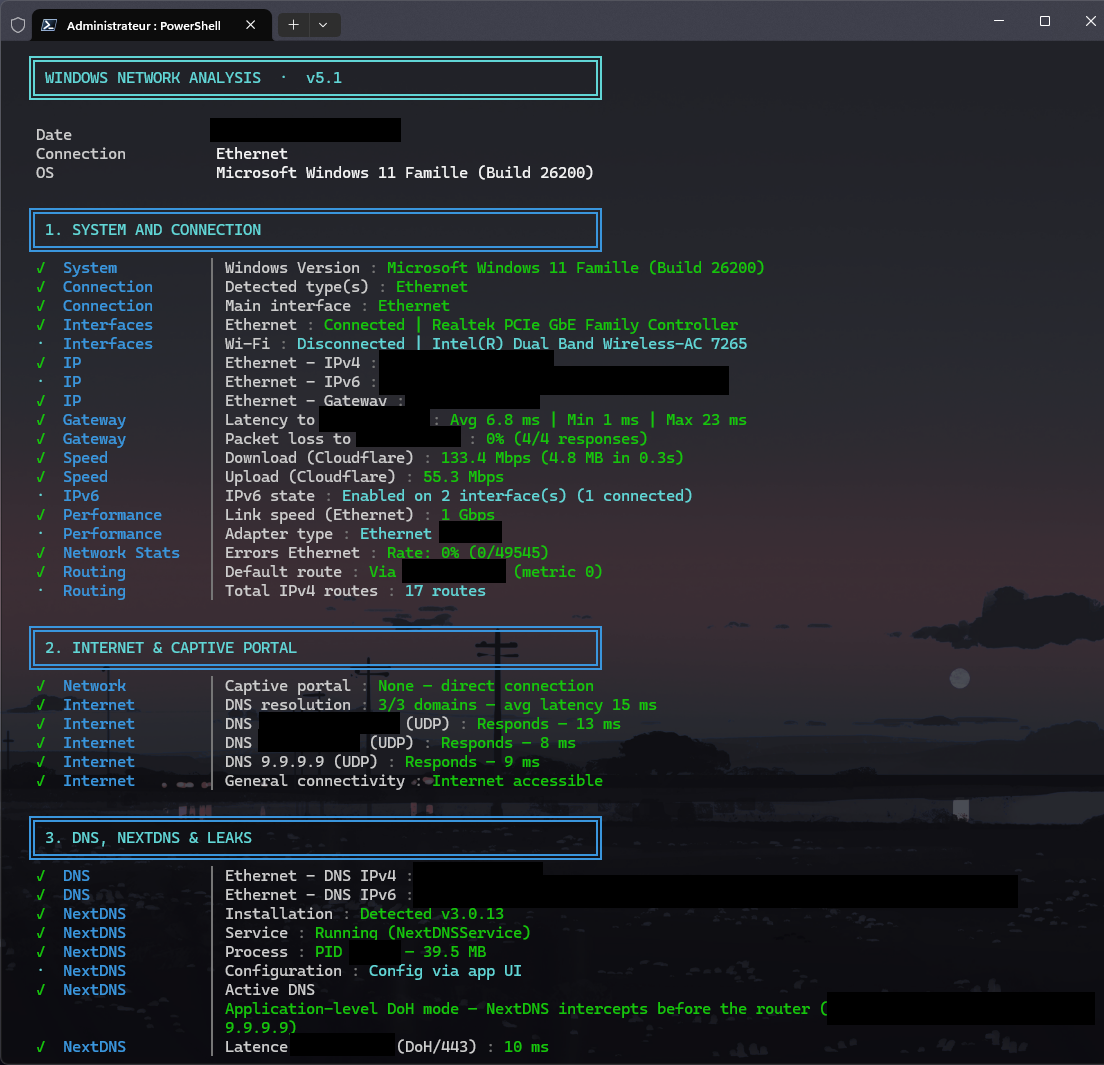
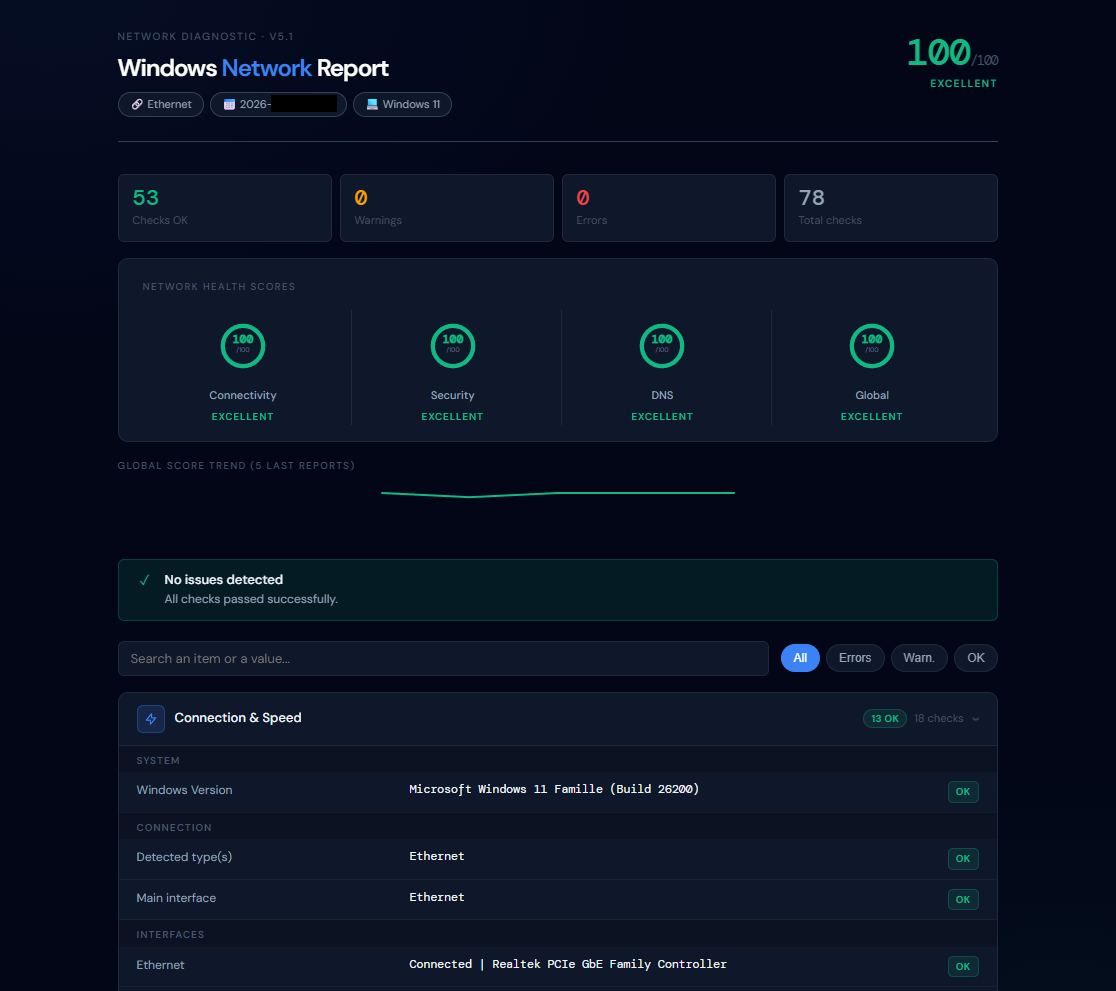
More in screenshots/: console output section by section, and the full HTML report.
It only inspects. It never changes your DNS, firewall, hosts file, proxy or network settings.
What it does write or send:
| Action | Details |
|---|---|
| Writes reports | A CSV, an HTML and a JSON file in Desktop\Maintenance_Reports\Check Network |
| Deletes old reports | Only Network_Report_* files (and legacy Rapport_Reseau_*) in that folder, older than 60 days (-PurgeDays, 0 disables) |
| Network traffic | Speed test to speed.cloudflare.com (downloads 5 MB, uploads 2 MB of dummy data); captive-portal test to msftconnecttest.com; DNS/TCP probes to public resolvers and to your router |
| Session settings | Set-ExecutionPolicy Bypass for the current PowerShell session only |
| Notification | A Windows balloon notification with the score at the end |
Nothing is uploaded anywhere. Wi-Fi passwords are never read (only the presence of a key is checked).
- Windows 10 or Windows 11.
- PowerShell 5.1 (built into Windows) or PowerShell 7+.
- Administrator rights (the script auto-elevates via a UAC prompt if launched from a non-elevated session; the elevated relaunch uses Windows PowerShell 5.1).
- Internet access is only needed for the speed test and the captive-portal detection (the speed test can be skipped with
-SkipSpeedTest); every other check works offline. - The Wi-Fi sections only appear when a Wi-Fi connection is detected.
- Works on English and French Windows installs: the script's own output is in English, and the
netsh wlanoutput it reads is parsed in both languages. - Optional: the NextDNS desktop client and the Block-Telemetry hosts block. Without them the related lines are informational only (see Optional integrations).
- If the script is digitally signed (recommended in environments using
-ExecutionPolicy AllSigned/RemoteSigned): the signing certificate must be trusted on the target machine.
-
Copy
Check-Network.ps1to the target machine. -
Open PowerShell as Administrator (recommended: the script self-elevates via a UAC prompt anyway, but running it in an already-elevated window keeps the output visible in your window instead of a new one that closes at the end of
-SelfTest).Then go to the folder that contains the script (adjust the path; keep the quotes if it contains spaces):
cd "$HOME\Downloads" -
Unblock the script if you downloaded it from the Internet. Windows flags downloaded files, and PowerShell's execution policy (
RemoteSigned, for example) refuses to run a flagged script. From the script's folder:Unblock-File .\Check-Network.ps1
If PowerShell says instead that running scripts is disabled on this system (the Windows default policy is
Restricted), allow scripts for the current account first (the change applies to this account only, not to the whole machine):Set-ExecutionPolicy -Scope CurrentUser -ExecutionPolicy RemoteSigned
Still blocked? See the step-by-step guide.
-
First run the self-test: no network analysis, no report written, no system modification:
.\Check-Network.ps1 -SelfTest
Executes 14 internal assertions (score state labels, packet-loss calculation,
-Categoryfilter logic, and more) and printsResult: 14 / 14 assertions passedwhen everything is fine. -
Run the full analysis:
.\Check-Network.ps1It takes a short while depending on your machine and connection (the speed test is the most noticeable step). Watch the console: the numbered sections appear once the analysis is complete, one line per check with a
✓/!/✗/·icon. -
When it finishes, the console prints an ANALYSIS COMPLETE frame with the three scores, followed by up to 5
ERRORand 5WARNINGfindings for an immediate read without opening the HTML report. -
Answer
Yto open the generated HTML report (the prompt is skipped with-Silent). Start with the alerts at the top, then use the search box and the status filter to jump to any specific check. -
On the second and subsequent runs, the Comparison section lists what changed since the previous JSON report, and the HTML report draws the trend of your global score.
-
If a line is unclear or unexpected (an unknown DNS server, an unfamiliar root certificate, an exposed port), don't just trust the label: check it against your router, your ISP or the software's vendor before changing anything. The script only inspects, it never fixes.
For a one-click launch, create a shortcut with one of these targets:
| Shell | Target |
|---|---|
| Windows PowerShell 5.1 (built in) | powershell.exe -NoProfile -ExecutionPolicy Bypass -File "C:\Path\To\Check-Network.ps1" |
| PowerShell 7 | pwsh.exe -NoProfile -ExecutionPolicy Bypass -File "C:\Path\To\Check-Network.ps1" |
| Flag | Meaning |
|---|---|
-NoProfile |
Starts without loading your PowerShell profile (faster, predictable) |
-ExecutionPolicy Bypass |
Allows this script to run regardless of the machine policy, for this session only |
-File "…" |
The script to run. Keep the quotes if the path contains spaces |
The script asks for elevation by itself; you do not need to tick "Run as administrator" in the shortcut.
| Parameter | Description |
|---|---|
-Silent |
No console output: generates the files and shows the notification only. Useful for scheduled tasks |
-SelfTest |
Validates the script's own key functions (scoring, category filter, packet-loss maths…) and exits, without analysing the network |
-Category <list> |
Limits the optional / slower sections. Values: Speed, RootCerts, WiFi, Comparison. Default: All. Core checks always run |
-SkipSpeedTest |
Skips the download/upload test (handy on metered connections or scheduled runs) |
-PurgeDays <n> |
Deletes reports older than n days. Default 60, 0 disables the purge |
Examples:
.\Check-Network.ps1                          # full run
.\Check-Network.ps1 -SkipSpeedTest           # no throughput test
.\Check-Network.ps1 -Category Speed,WiFi     # core checks + speed test + Wi-Fi only
.\Check-Network.ps1 -Silent -PurgeDays 0     # scheduled run, keep every report
.\Check-Network.ps1 -SelfTest # validate the script itselfThe report is split into numbered, framed sections. Each check is one line:
   ✓  Gateway         │ Latency to xxx.xxx.x.x : Avg 3.1 ms | Min 2 ms | Max 5 ms
   !  DNS             │ Wi-Fi - DNS IPv4 : xx.xx.xxx.x
   ✗  Speed           │ Download (Cloudflare) : 6 Mbps (4.8 MB in 6.68s)
   ·  NextDNS         │ Installation : Not detected
Columns: icon · category · │ · check : value. Long values wrap onto the next lines under the │.
| Icon | Colour | Meaning |
|---|---|---|
✓ |
Green | OK: nothing to do |
! |
Yellow | WARNING: worth a look, not necessarily a problem (−5 points on the related score) |
✗ |
Red | ERROR: a real problem or a clearly risky value (−15 points) |
· |
Cyan | INFO: informational, no impact on the score |
At the end, a green ANALYSIS COMPLETE frame shows the three scores as gauges (█████░░░), the total number of checks with OK / WARN / ERROR counts, and the first five errors and warnings so you can act without opening the HTML report. The report file paths follow, prefixed with ».
- System / Connection / Interfaces: Windows version, connection type (Ethernet, Wi-Fi, VPN), main adapter, and the state of every network adapter.
- IP / Gateway: IPv4 / IPv6 addresses, default gateway, DNS servers per interface. A public DNS server that is not a well-known resolver raises a warning, because it may be your ISP's or an unexpected one.
- Gateway latency: 4 probes to your router. Average ≤ 25 ms OK, ≤ 50 ms warning, above = error. Packet loss is reported too: 0 % OK, ≤ 25 % warning, above = error. A Wi-Fi link can have a good average latency and still lose packets.
- Speed: download of 5 MB and upload of 2 MB via Cloudflare. Download ≥ 50 Mbps OK, ≥ 10 Mbps warning; upload ≥ 10 Mbps OK, ≥ 2 Mbps warning. A 5 MB file slightly underestimates very fast links.
- Performance / Network Stats: negotiated link speed (≥ 100 Mbps OK) and error rate on the main adapter (0 % OK, < 0.1 % warning).
- Routing: default route(s). Several default routes (for example Wi-Fi and Ethernet at once) are flagged as a warning.
- IPv6: whether IPv6 is enabled and on how many connected interfaces.
- Internet: DNS resolution of test domains, TCP/UDP reachability of public DNS servers, general connectivity.
- Network: captive-portal detection (hotel / café / airport Wi-Fi that redirects you to a login page).
- DNS: resolution time of common domains, and a check that the answers are not hijacked.
- NextDNS / DoH Windows / DNS Leak / Bypass DNS / IPv6 Leak: see Optional integrations. Without NextDNS these lines are simply
INFO. - DNS Cache: classifies what is currently in the Windows DNS cache: legitimate infrastructure, known telemetry, blocked domains (resolved to
0.0.0.0/xxx.x.x.x), suspicious names (algorithmically generated domains, dangerous TLDs, malware patterns). - Hosts File: number of null-routed entries in your hosts file, and how many were seen recently in the DNS cache (the cache only shows domains queried since the last flush, so a coverage below 100 % is normal).
- Firewall / Network Profile: the three firewall profiles (Domain / Private / Public) must be active; the current network category (Public is the most restrictive).
- TCP Ports / UDP Ports: listening ports. Sensitive services (FTP, Telnet, SMB, RDP…) or ports listening on all interfaces (
0.0.0.0) are flagged, with the owning process. - Processes: non-system processes exposed on
0.0.0.0. - Connections / Outbound: established TCP connections, suspicious remote ports, and the outbound connections of each process.
- SMB: non-default shares and whether the obsolete, vulnerable SMBv1 protocol is enabled.
- Proxy: WinINET and WinHTTP proxy settings (a proxy you did not configure can intercept traffic).
- NetBIOS: NetBIOS over TCP/IP state (a risk on public networks).
- ARP: duplicate MAC addresses in the ARP cache, a classic sign of ARP spoofing.
- Certificates: root certificates outside the usual Microsoft-trusted list (a rogue root certificate allows HTTPS interception; on corporate PCs some are normal).
- ICS: Windows Internet Connection Sharing, which turns your PC into a router.
- Wi-Fi: SSID, authentication (WPA3 / WPA2 OK, WPA warning, WEP / Open error), signal (≥ 70 % OK, ≥ 40 % warning), radio standard and channel.
- Wi-Fi History: saved Wi-Fi profiles and their authentication type; weak or open networks you once connected to are flagged.
- Comparison: differences with the previous JSON report (items that went from OK to WARNING / ERROR, or back).
- Maintenance: number of old reports purged.
Every line with a WARNING removes 5 points and every ERROR 15 points from the score it belongs to. There are three scores, all starting at 100:
| Score | Covers |
|---|---|
| Connectivity | Gateway, speed, interfaces, routing, Wi-Fi signal, IPv6 |
| Security | Firewall, ports, processes, SMB, proxy, certificates, ARP, Wi-Fi security |
| DNS | DNS servers, resolution, NextDNS, leaks, DNS cache, hosts file |
The Global score is the average of the three. Console state labels: EXCELLENT ≥ 90 · GOOD ≥ 75 · FAIR ≥ 50 · CRITICAL below 50. (The HTML report colours: green ≥ 90, orange ≥ 60, red below.)
Files are saved in %USERPROFILE%\Desktop\Maintenance_Reports\Check Network:
| File | Content |
|---|---|
Network_Report_<yyyy-MM-dd_HH-mm>.html |
Dark-theme report: score donuts, score trend over previous runs, alerts, collapsible sections, live search and status filter |
Network_Report_<yyyy-MM-dd_HH-mm>.csv |
All results, one row per check |
Network_Report_<yyyy-MM-dd_HH-mm>.json |
Same data for tooling, and the baseline used by the next run's comparison |
Neither is required. If you do not use them, the related lines show INFO and do not lower your score.
- NextDNS (desktop client): when detected, the script checks the service, the process, the transport mode (DoH / DoT / classic), latency to NextDNS servers, whether Windows DNS actually goes through it, and looks for DNS leaks (queries on port 53 that bypass it, including over IPv6) and applications using a hard-coded DNS.
- Block-Telemetry (companion script): when its block is found in the hosts file, Check-Network counts the domains it contains and checks the file's age (≤ 120 days OK, ≤ 240 warning, above = error). Without that block, the file's age is shown as information only.
The report contains information about your machine: adapter names, IP addresses, Wi-Fi network names, process names and ports. It is generated locally and never sent anywhere. Before sharing a screenshot or a report publicly, hide those details.
The window opens and closes immediately
Run it from an already open PowerShell window (.\Check-Network.ps1) to see any error message, and check that the UAC prompt was accepted.
Speed shows a very low value
The test downloads 5 MB, so it also measures connection start-up and can under-report very fast links. Compare with a browser speed test; if the two disagree by a lot, run it again with nothing else using the connection.
"Unknown public DNS" warning
The script only knows the most common public resolvers. If the address is your ISP's or one you chose deliberately, the warning is informational.
Several root certificates reported
Corporate, school and some security software install their own root certificates. Review the list; it is only a problem if you do not recognise the issuer.
Symbols display as squares or the frames are misaligned
Use Windows Terminal, or a console font that supports box-drawing characters (Consolas, Cascadia Mono).