


See your solar production, household consumption, and grid exchange across a day in two synchronized Home Assistant graphs.
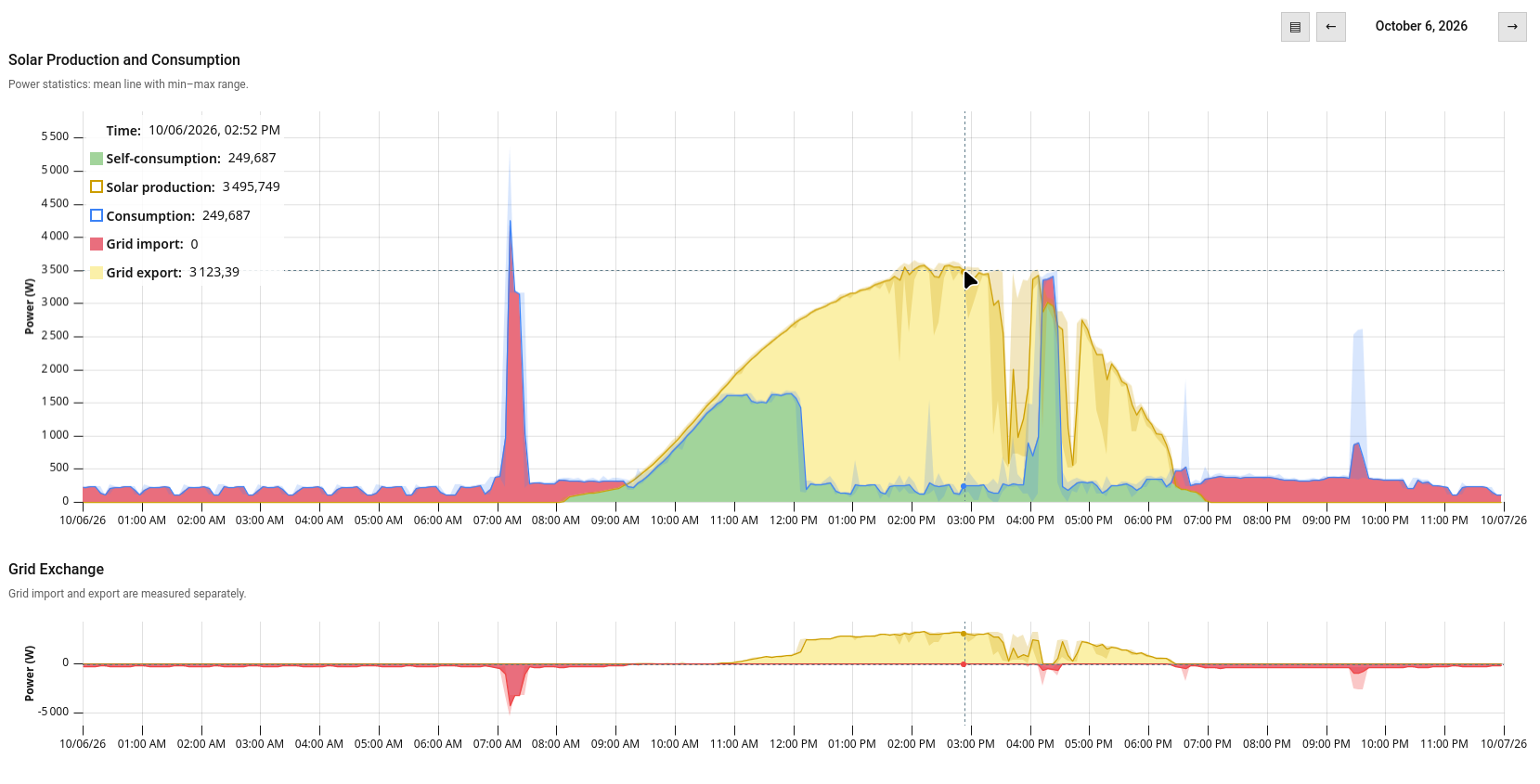
- Compare solar production and consumption, with direct self-consumption
estimated as
min(production, consumption). This estimate does not account for a battery. - See grid export above zero and grid import below zero, each from its own sensor.
- Follow the shared cursor and synchronized horizontal zoom across both graphs.
- Read mean power with a min–max range where Home Assistant statistics are available.
- Switch to higher-precision raw history when finer samples are detected.
- Follow current-day sensor updates, with statistics refreshed every five minutes.
- Navigate by day in the Home Assistant time zone, including a one-click return to today.
- Match the active Home Assistant theme and configure the card in the visual editor.
- Automatically switch to French when Home Assistant is set to
frorfr-*.
Configure four separate Home Assistant power sensors: solar production, consumption, grid import, and grid export. Each must report:
device_class: powerstate_class: measurement- a unit of
WorkW
The card does not infer which sensor has which role, derive import from export,
or derive export from import. Assign sensors whose measured direction matches
each role. Energy sensors measured in kWh are not supported; choose power
sensors instead.
Home Assistant's recorder must retain history for the sensors, and recorder
statistics must be available. Five-minute statistics are used while retained;
after they are purged according to purge_keep_days (10 days by default),
hourly statistics can provide older data. The current day is extended with
recent recorded states and live state updates.

Or search for Solar Energy Graphs Card in HACS:
- Open HACS in Home Assistant.
- Search for Solar Energy Graphs Card and install it.
- HACS adds the dashboard resource automatically. Refresh the browser if the card does not appear in the card picker.
- Download
solar-energy-graphs-card.jsfrom the latest GitHub release. - Copy it to
/config/www/solar-energy-graphs-card.js. - In Home Assistant, open Settings → Dashboards → Resources, add
/local/solar-energy-graphs-card.jsas a JavaScript module resource, and save. - Refresh the browser.
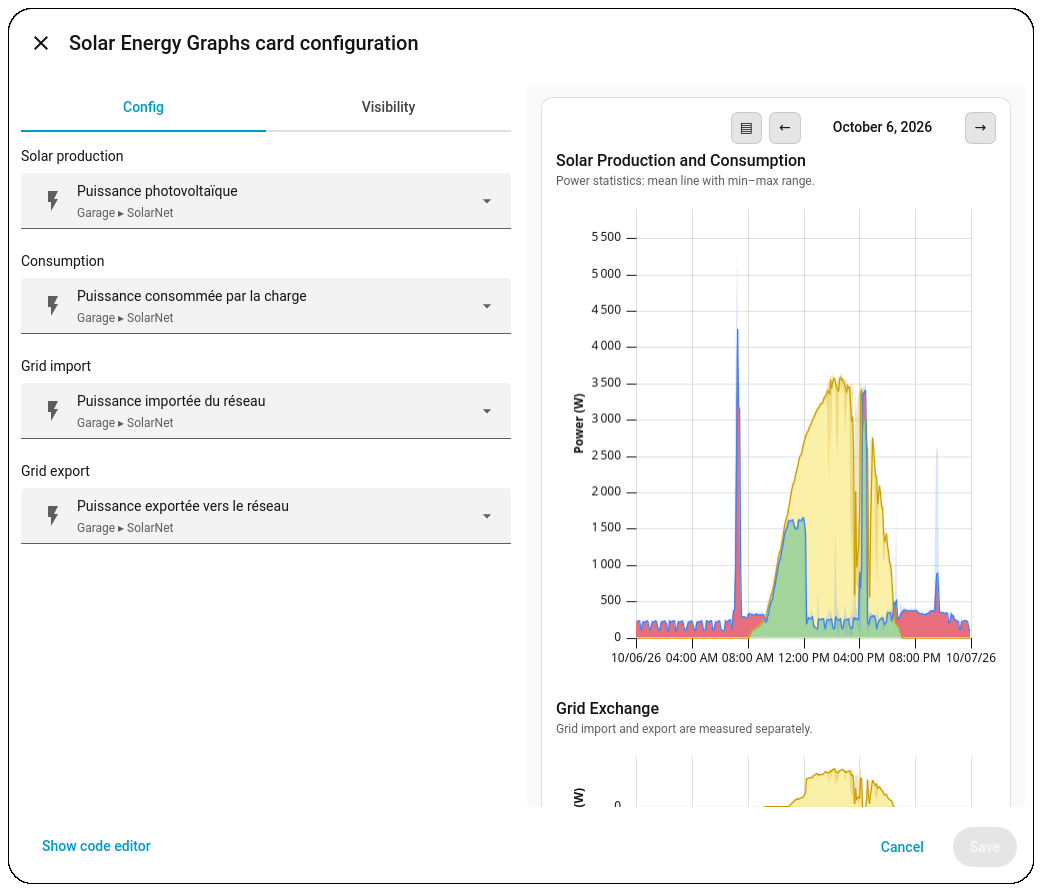
In the dashboard editor, choose Add card and select Solar Energy Graphs Card. In the visual editor, select one sensor for each of the four roles:
The visual editor lists only sensors with device_class: power,
state_class: measurement, and a W or kW unit; an already configured
sensor remains visible even if it is no longer compatible.
For a YAML dashboard, use:
type: custom:solar-energy-graphs-card
entities:
  production: sensor.your_solar_production
  consumption: sensor.your_consumption
  grid_import: sensor.your_grid_import
  grid_export: sensor.your_grid_export
Replace each example entity ID with the matching power sensor from your Home Assistant installation. All four options are required:
| Option | Sensor role |
|---|---|
type |
custom:solar-energy-graphs-card |
entities.production |
Solar production power |
entities.consumption |
Consumption power |
entities.grid_import |
Power imported from the grid |
entities.grid_export |
Power exported to the grid |
Solar Production and Consumption shows the production and consumption means as lines. Yellow represents solar production; blue represents consumption. A pale min–max range accompanies each statistical series. The filled green area estimates direct self-consumption as the lower of production and consumption; the red area represents consumption above that estimate. Moving the cursor over either graph shows a legend in the top-left corner of the upper graph, with the time and one line per series, including the separately measured grid import and export values.
Grid Exchange shows export above zero in yellow and import below zero in red. Import is negated for display only; the card reads import and export from separate sensors. The horizontal zero line separates the two directions.
The axes show local time and power in watts. On a past day, the graph uses Home Assistant statistics. On today, each line extends with recorded raw states and live values, and stops at the current time. Min–max ranges are available for the statistics portion, not the raw-state portion.
- Zoom in: drag across a range in either graph. The other graph follows.
- Pan: after zooming in, drag to move through the day.
- Mouse wheel: zoom in or out around the cursor.
- Return to the full day: double-click either graph.
The zoom is preserved while live values and statistics update. Changing days resets the time range to the selected day.
On touchscreens, the card layout and day navigation work, but touch gestures for zooming and panning are not currently supported.
Use the arrows at the top right to move to the previous or next day. The date is interpreted in Home Assistant's time zone, not the browser's. The next-day arrow is disabled for today; select the displayed date to return to today. Local-day boundaries account for daylight-saving days that are 23 or 25 hours long.
When finer-than-statistics samples are detected, a precision button lets you load raw history for the selected day; select it again to return to standard statistics. Availability is checked using the minute before the current time of day on the selected day, so finer samples elsewhere may go undetected. If the check fails, the button remains available.
For today, recent recorded states extend the latest statistics and incoming Home Assistant state updates extend the line in near real time. Statistics refresh every five minutes, shortly after each five-minute boundary.
- Past and current-day statistics: Home Assistant
recorder/statistics_during_periodsupplies mean, minimum, and maximum at five-minute intervals. The card asks Home Assistant for watts. - Older history: once five-minute statistics are no longer retained by the recorder, hourly statistics are used where available.
- Recent and high-precision data: Home Assistant raw history states are used for today's recent tail and, when available, for the selected full day.
- Live values: current Home Assistant sensor states extend today's data.
- Units:
Wvalues are used as-is andkWvalues are converted toW. - Derived display: direct self-consumption is estimated as
min(production, consumption), without modeling a battery. Grid import is negated for the lower graph only; neither grid direction is derived from the other.
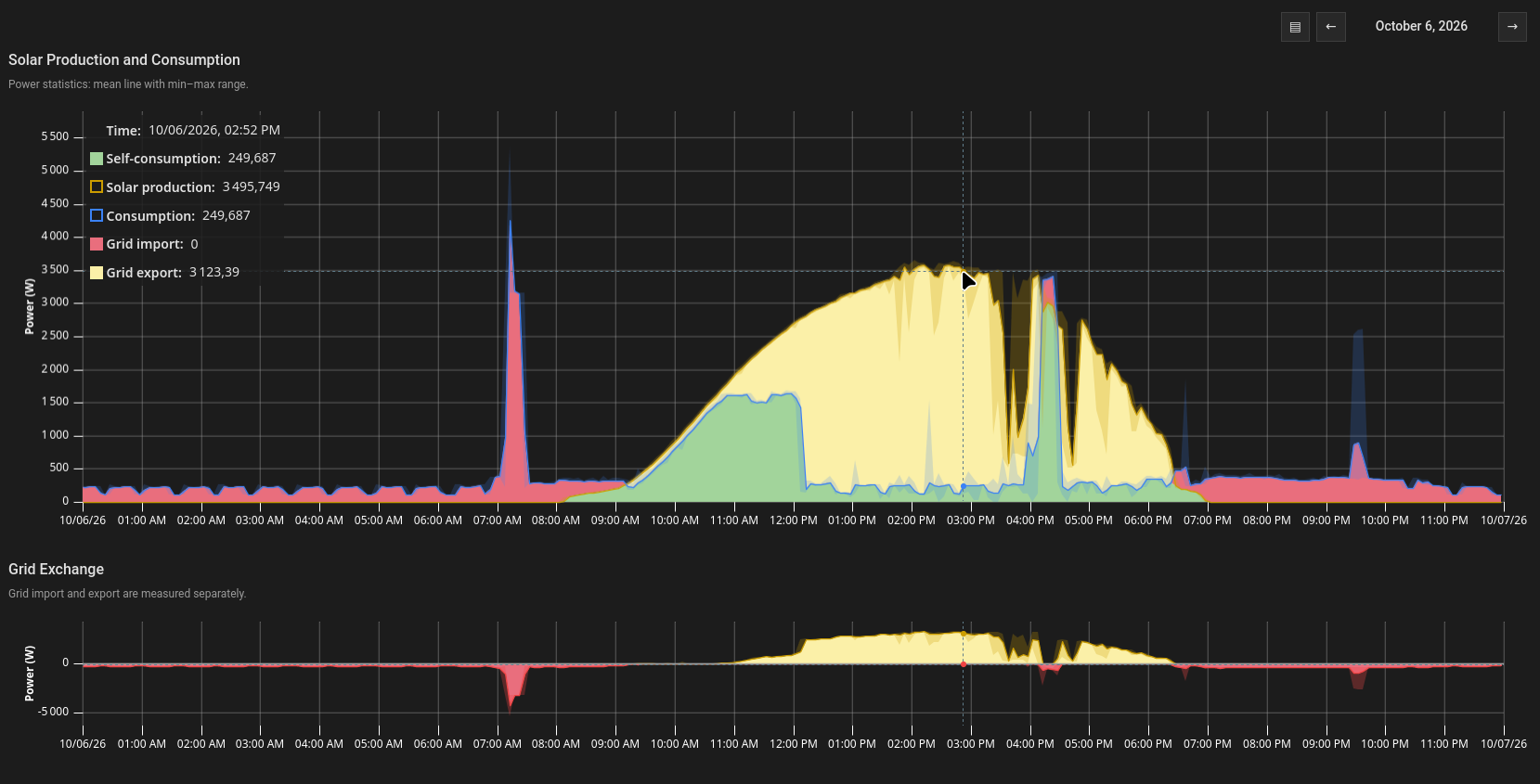
The card follows Home Assistant's active light or dark theme for chart axes and grid. The graph colors and series fills are part of the card design.
Dark theme
The two graphs resize with the card's available width and height.
When Home Assistant is set to French, the card uses French labels and dates; English remains the fallback for all other languages.
| Message or symptom | Likely cause | What to check |
|---|---|---|
Custom element doesn't exist |
The JavaScript resource is not loaded, or the browser is using a stale dashboard. | Confirm installation and the resource path, then refresh the browser. |
Sensor configuration error: ... |
A configured sensor has the wrong class or unit. | Use sensors with device_class: power, state_class: measurement, and unit W or kW. |
History loading error: ... |
Home Assistant could not load history or statistics. | Check recorder availability, the browser/HA connection, and the selected sensors. |
Error: <date> production or consumption history is unavailable. |
The selected day has no production or consumption history for one or both sensors. | Check the selected entities and their recorder history for that date. |
Error: <date> grid import or export history is unavailable. |
The selected day has no import or export history for one or both sensors. | Check both grid sensors and their recorder history for that date. |
Waiting for Home Assistant data. |
The card has not yet received the Home Assistant context. | Wait for the dashboard to load; if it persists, reload the dashboard. |
| High-precision button is absent | The minute before the current time of day did not show samples finer than statistics. | Fine samples elsewhere in the day may be missed by this availability check. |
Does the self-consumption estimate account for a battery?
No. It is min(production, consumption) and does not model battery charging
or discharging.
Can I use energy sensors in kWh?
No. This card requires power sensors in W or kW, with
device_class: power and state_class: measurement.
Does the card calculate grid import from export?
No. Import and export are configured as separate sensors.
In mid-September 2026, support for InfluxDB disappeared for a few weeks. At the time, I was using InfluxDB + Grafana to generate production and consumption graphs for my home, which is equipped with solar panels.
As a professional developer, I wanted to see if an AI could help me write code in a language I don't know, while retaining full control over what it does: functionality, architecture, and tests (coverage and quality). This experience was very rich. It helped me learn how to better interact with an AI and showed me the benefit of mutation testing to guarantee the quality of the written tests.
Since the results of this development were satisfying, I quickly uninstalled InfluxDB and Grafana in favor of this card, which provides the exact same information faster and taking fa rfewer space : ~140 KB compared to ~1 GB for the same service (Note: I hadn't optimized data retention, something that became unnecessary with this card).
Because this card works quite well, I decided to share it with the community via HACS, and I plan to continue developing it to add more advanced features to better understand how energy is consumed in my home.
As said in developer's motivation, AI was used as a pair programmer, not as an autonomous developer: architectural and implementation decisions remained under human direction and review.
The development process focused on three areas:
- Design and Software architecture — The implementation follows established software engineering best practices, with a focus on clean, maintainable, well-structured and testable code, clear separation of responsibilities, and avoiding unnecessary complexity.
- Testing — In addition to unit tests and coverage, mutation testing was used to verify that the test suite could actually detect meaningful regressions.
- Real-world validation — Features were tested not only in isolation, but also on a running Home Assistant installation with real devices before being considered ready.
See the contribution guide.
AI assistance was a development tool, not a substitute for maintainer review. As with any software, this does not guarantee that every change is free of issues.
Issues, feedback, and suggestions are welcome through the project's usual contribution channels.
This project is distributed under the GNU General Public License v3.0.